Customer journey
The customer identifies, joins your loyalty program if needed, chooses a purchase limit and signs the credit agreement. All in the checkout, on your page.
The screenshots show the checkout with an example merchant, ABC. Texts, prices, colors and icons follow your profile and the language of the session.
Steps
- 1BankID in Sweden, Finnish bank ID in Finland.Already has the account: straight to the confirmation
- 2Join your loyalty program if needed. Required with Loyal Pay.
- 3Fixed limit, slider, or a raise of the current limit.
- 4No cart, delivery or total amount.
- 5Questions about financesSweden, when neededIncome, household and debts.
- 6The agreement, SECCI and terms, signed with electronic ID.Denied: back to step 3 to choose a lower limit, or leave
- ConfirmationYou are all set! The account is ready to use.
1. Identify
The customer identifies with BankID in Sweden, or with Finnish bank ID in Finland. Identification with only email and phone number is not possible, because the account needs a verified identity.
If the customer already has the account, the session completes here.
2. Membership
The Loyalty Booster module shows the customer's membership:
- Member: level, points and benefits.
- Not a member: a checkbox to join your loyalty program.
With Loyal Pay, the account is locked until the customer is a member or ticks the box. Without Loyal Pay, the module is shown only if Loyalty Booster is enabled.
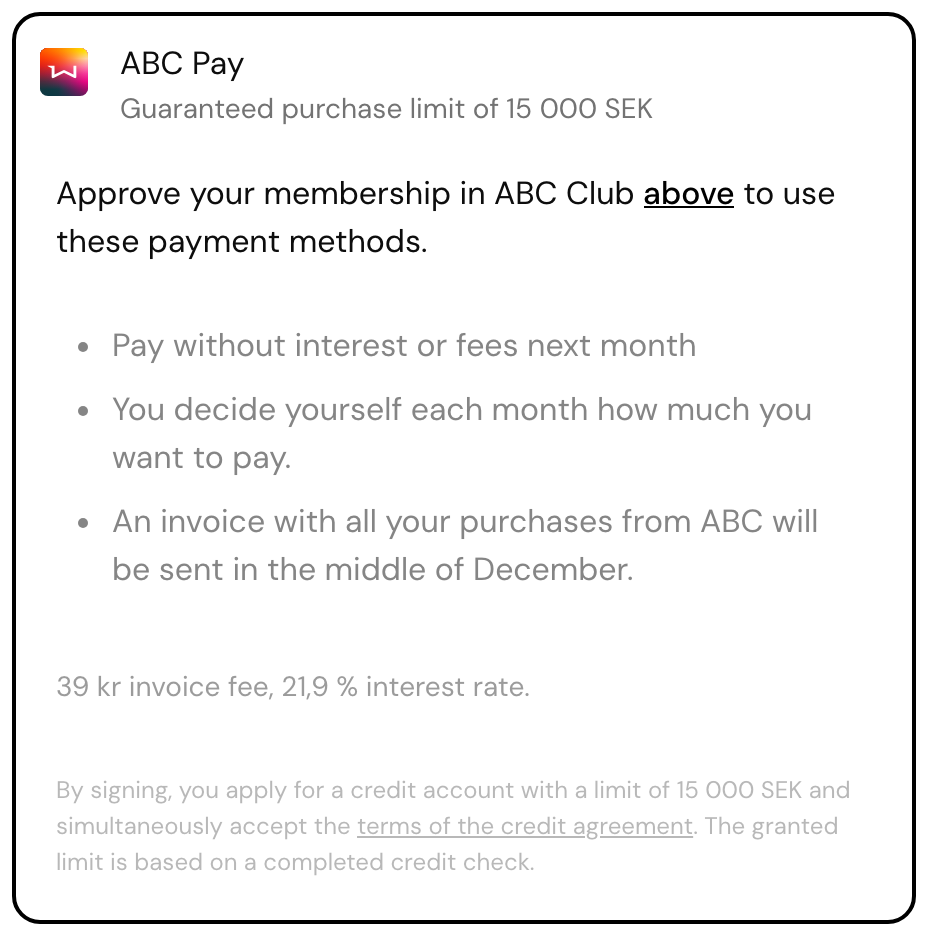
3. Choose a purchase limit
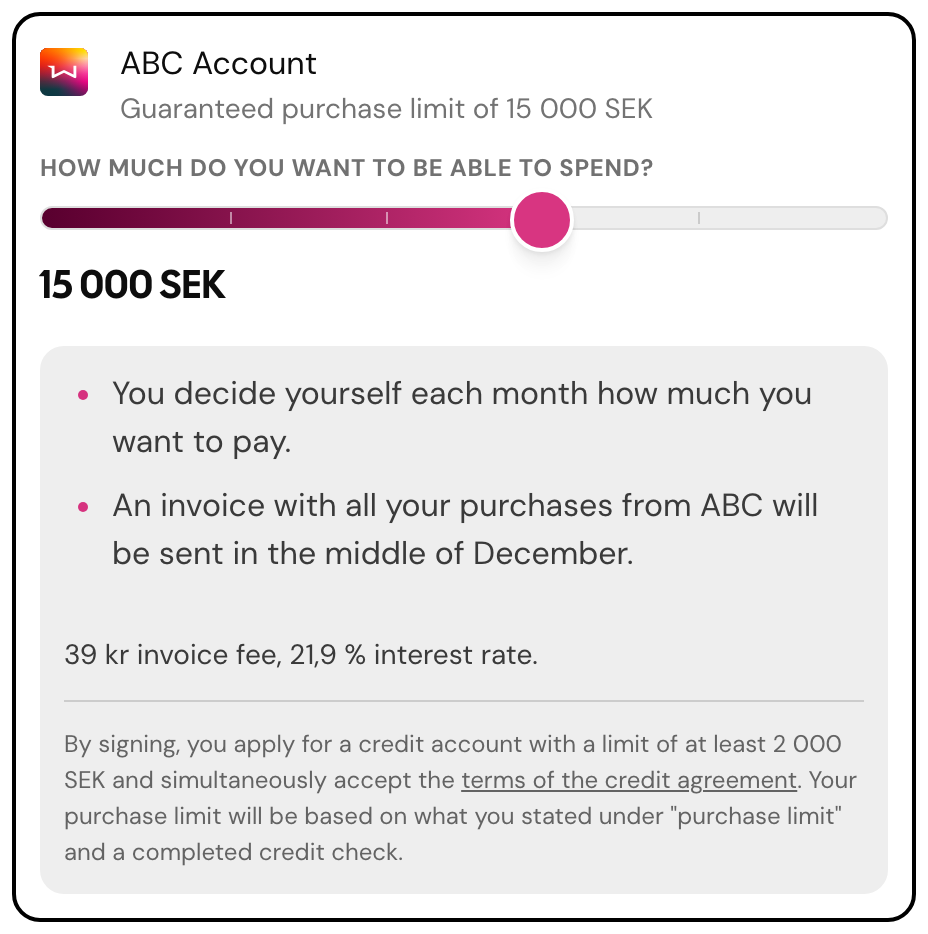
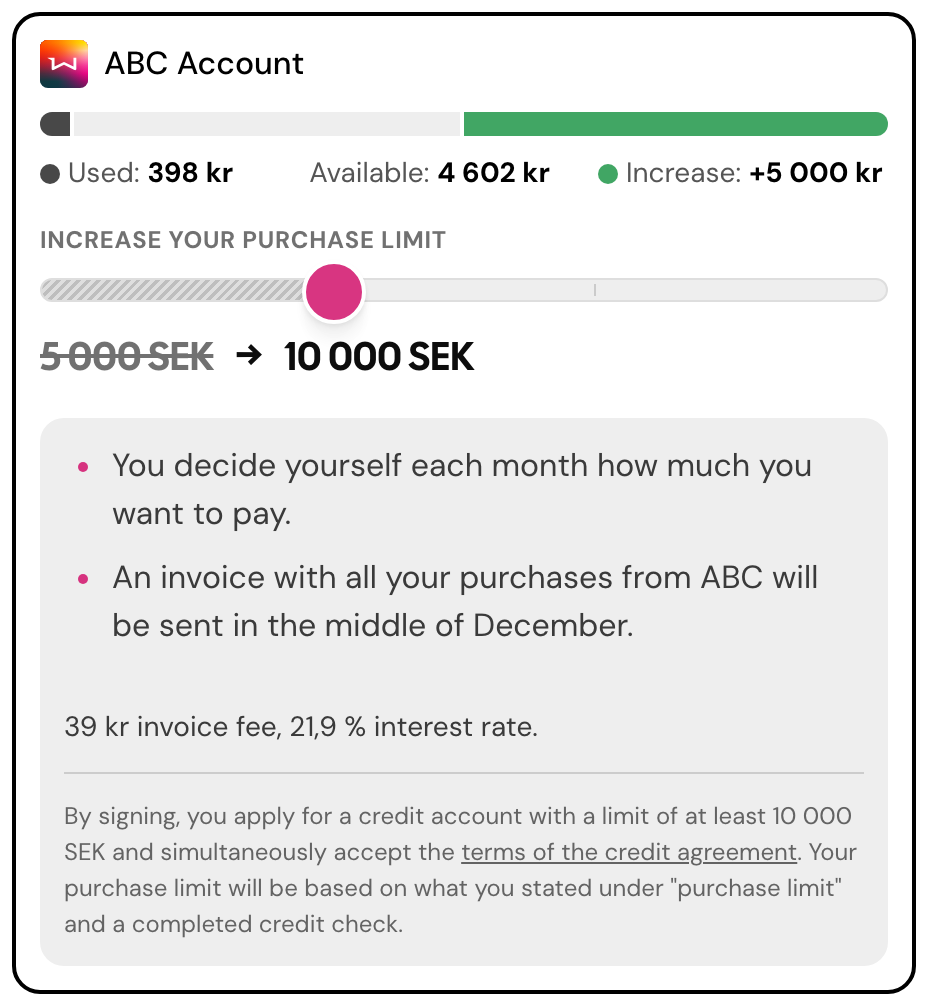
The account is shown with its name, icon and conditions.
- Fixed limit: the text Guaranteed purchase limit of 5 000 SEK.
- Selectable limit: a slider with the question How much do you want to be able to spend?
- Raise of an existing limit: a bar with the current limit, how much is used and how much is left, and a slider that only offers higher limits.
4. Sign
The button reads Sign. In Sweden it shows the BankID icon. There is no cart, delivery or total amount.
5. Questions about finances
In Sweden, Walley may ask about income, household and debts before deciding on the limit. Whether the questions appear depends on the limit and the customer's existing credit.
6. Sign the credit agreement
The customer reviews the agreement with the chosen limit, the SECCI and the terms, and signs with the same electronic ID used to identify.
Outcome
| Outcome | Customer sees |
|---|---|
| Approved | You are all set! and a card with the account and the granted limit. |
| Limit raised | The same confirmation with the new limit. |
| Already has the account | The confirmation with the current account. |
| Denied | The application could not be completed. The customer can choose a lower limit or leave. |
| Raise denied | The increase was not approved. The current limit is kept. |
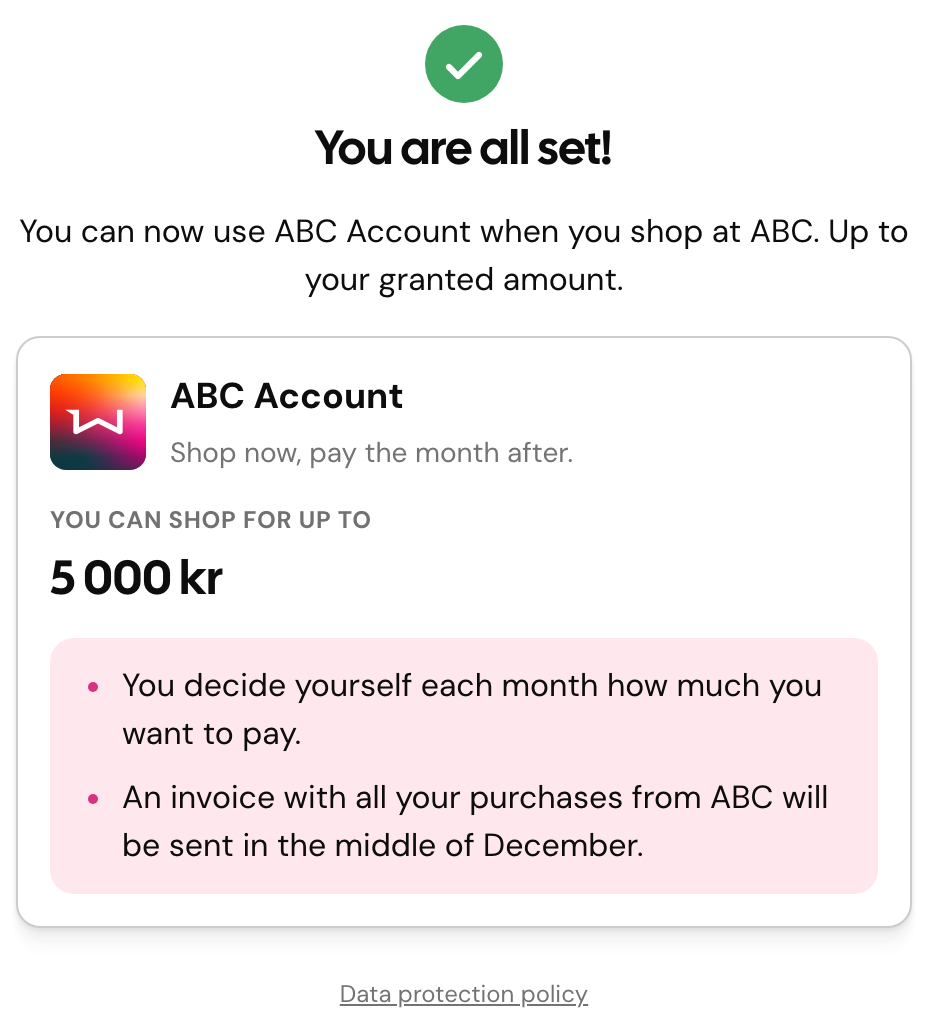
The customer stays on your page after the confirmation. See handling the result.