Quick guide to the Merchant Hub
A tour of the four views you will use most. The numbers in each screenshot match the list below it.
Order search
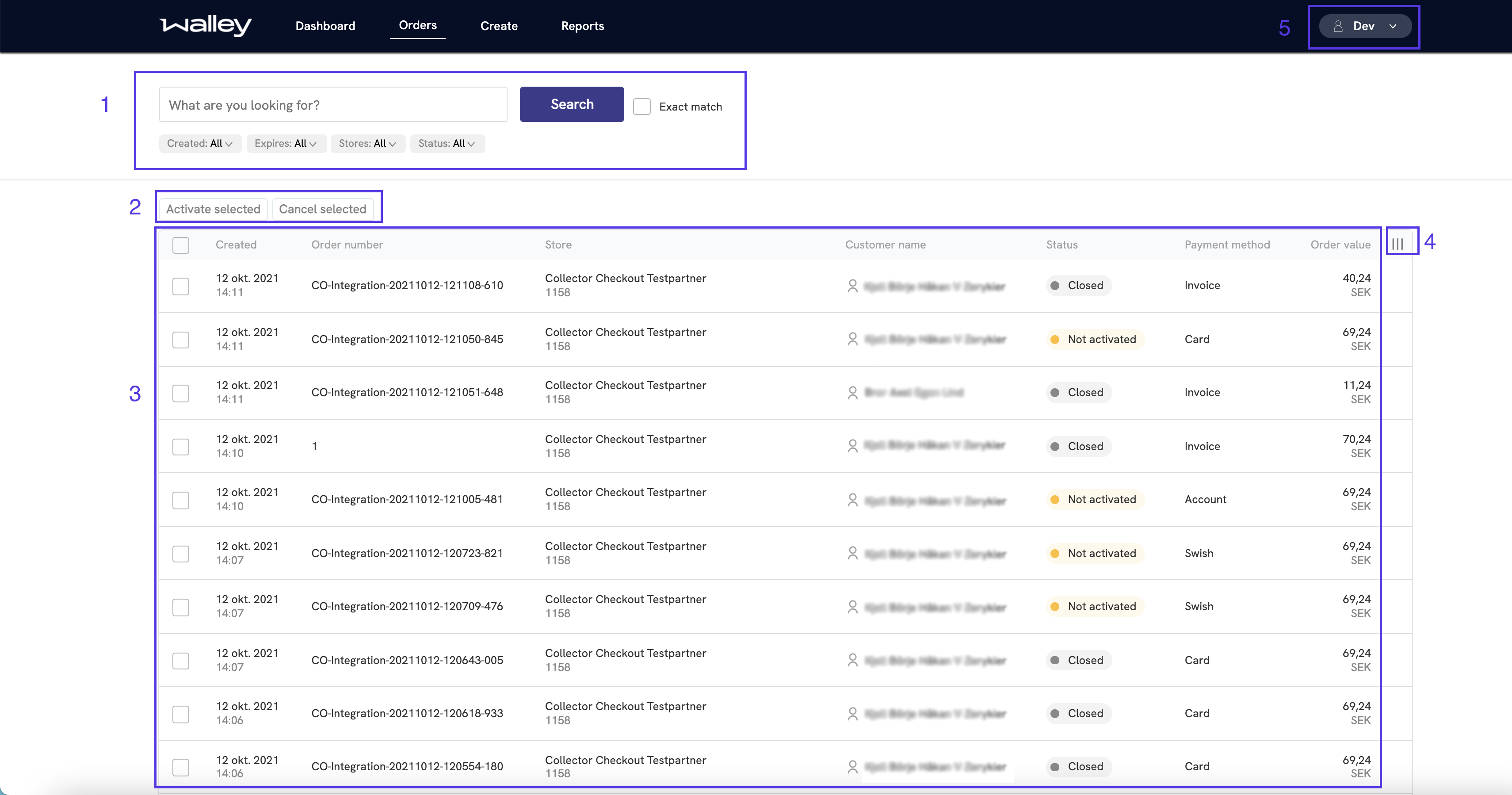
- Search field with filters for date, status, store, and more. See Searching for orders.
- Bulk actions. Tick the checkboxes to choose which orders the action applies to.
- Orders matching your search.
- Column picker. Opens a side panel where you choose which columns the table shows.
- User menu with links to Manage Organization, the FAQ, and log out.
Order details
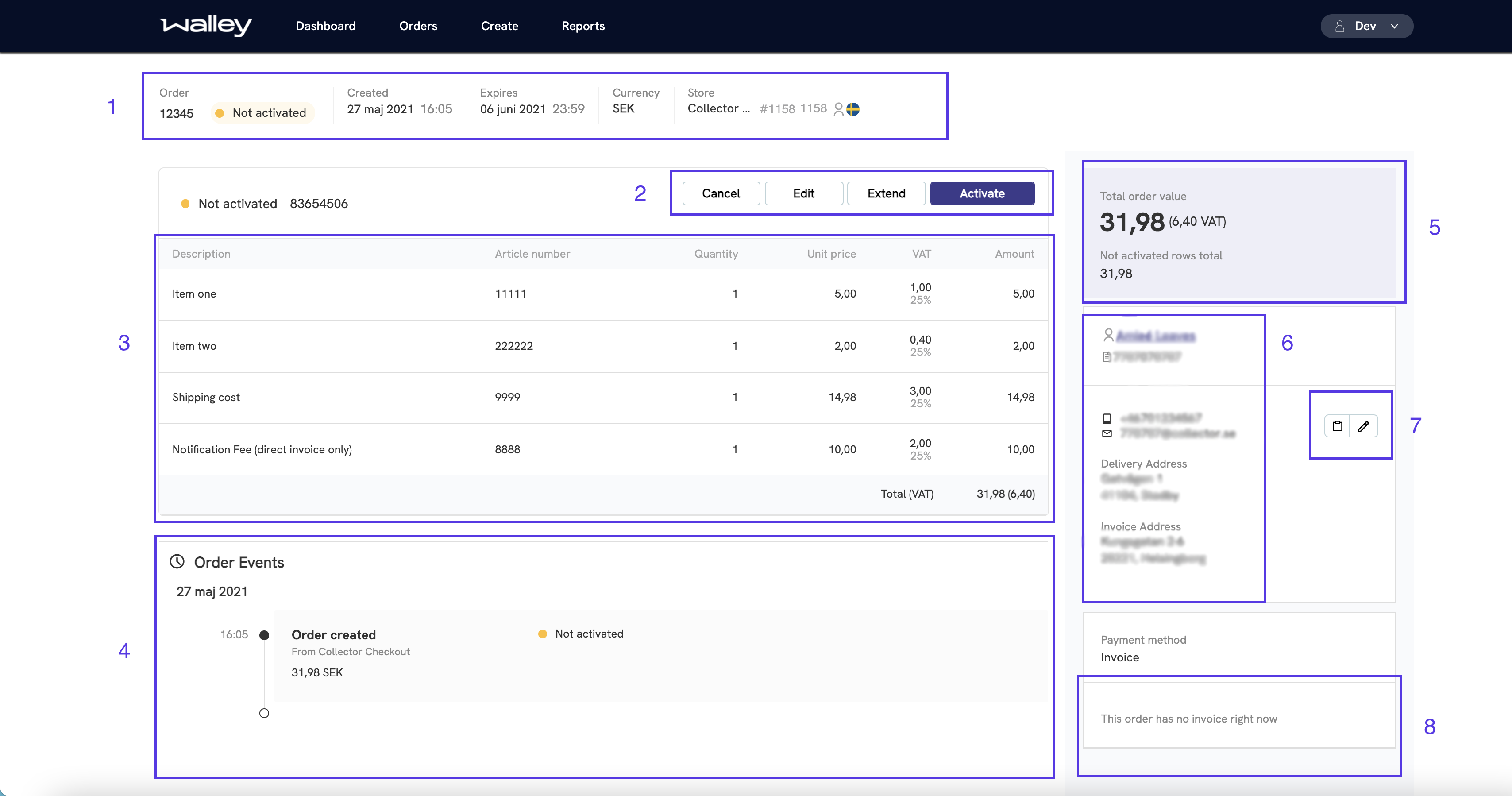
- Order header with the status and details of the order as a whole.
- Actions you can perform on the order. Which ones you see depends on the order status.
- Order articles.
- Timeline of everything that has happened to the order.
- Order totals and how much of the order is not yet activated.
- Customer information.
- Buttons to change the email address on the order and to copy it to your clipboard.
- Links to the order's invoices, if the order has any.
Manage Organization
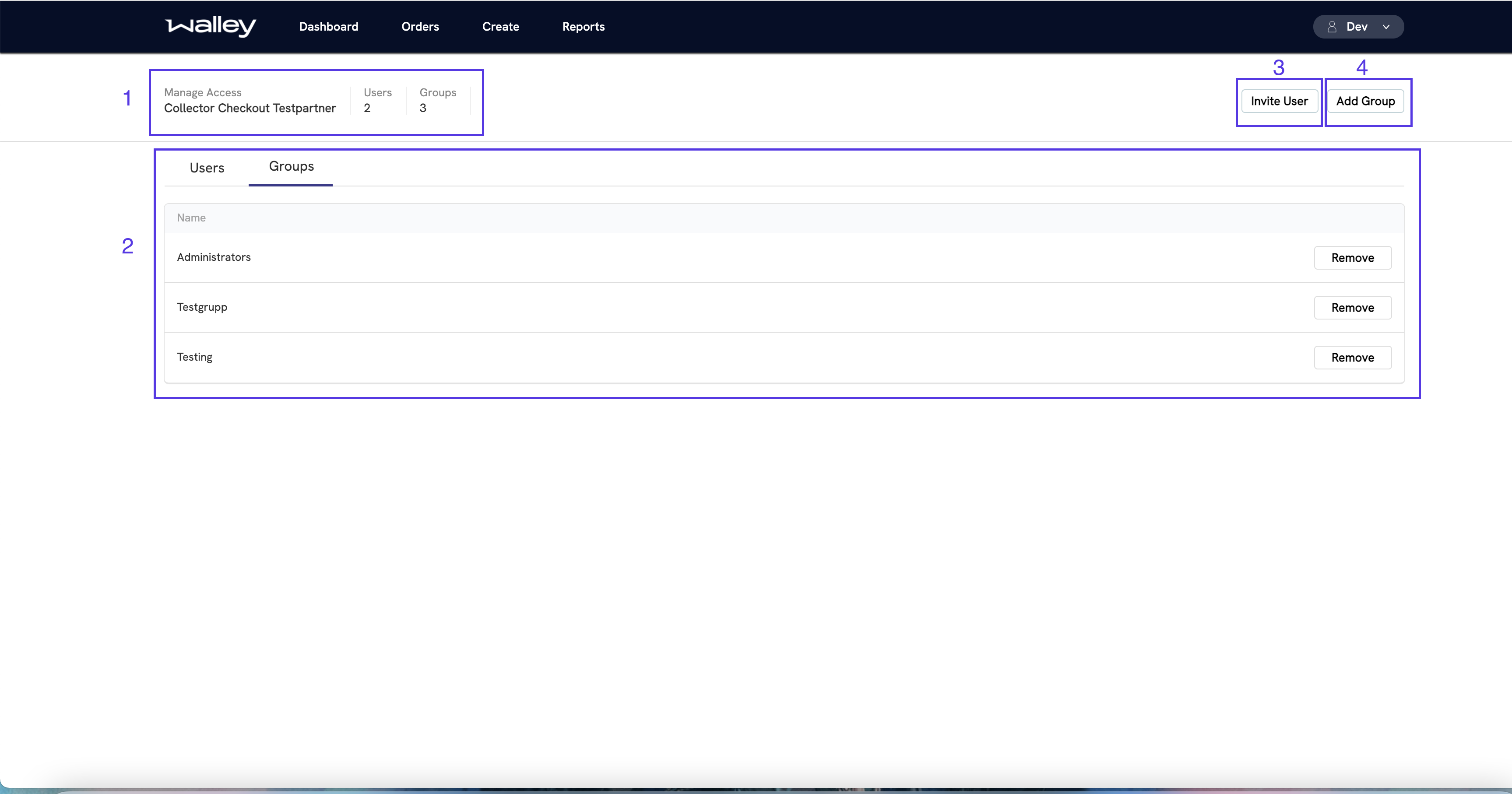
- Your organization and how many users and groups it has.
- Users or groups, depending on the selected tab. Select a row to open that user or group and change its permissions.
- Button to invite a user to your organization.
- Button to create a new group.
Reports
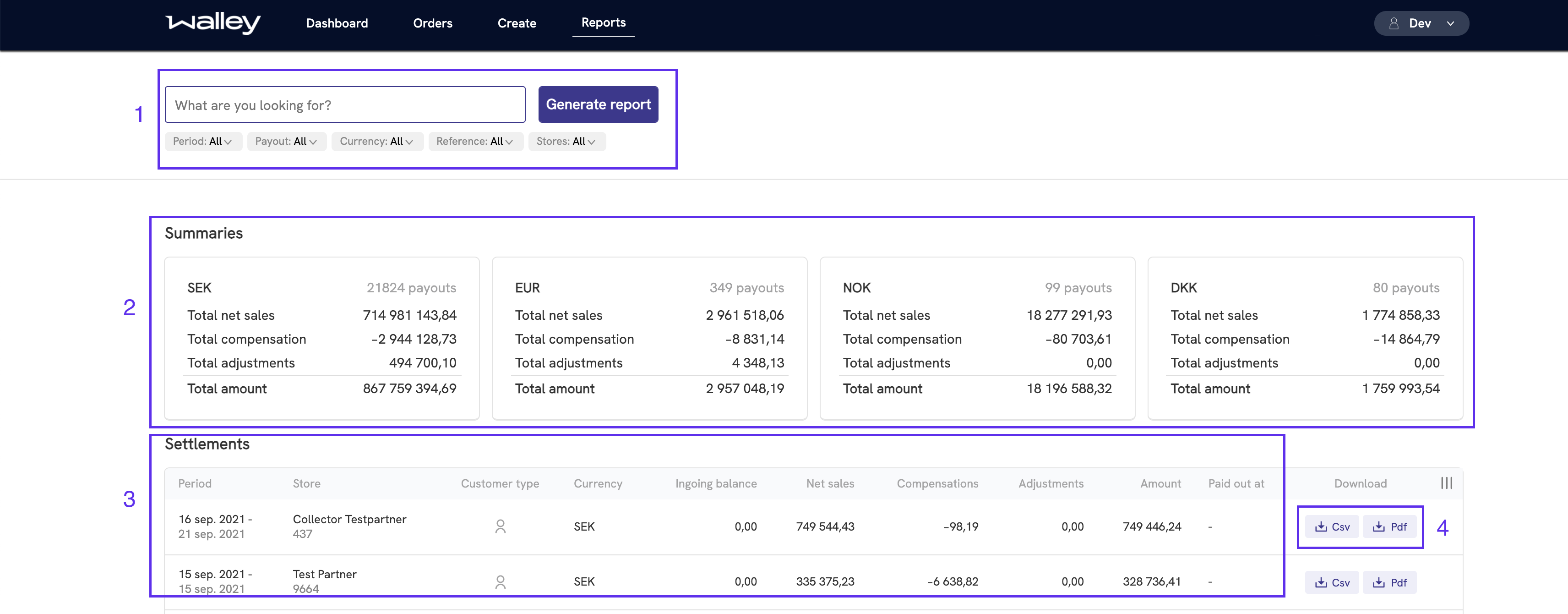
- Search field that works like the one in order search. Use it to choose the periods you want to see.
- Summary cards with total sales per currency. Filter them by currency.
- Reports matching your search.
- Download icons for CSV and PDF.